What is a Brick?
Bricks are code building blocks that can be used in our Apps. They are designed to make the App design and coding easier, by making complex code available through only a couple of lines of code.
Bricks vary in functionality: some embed AI models (computer vision, audio recognition), others are used to provide networking & web interfaces. But they are used in the same way: by importing them into the main.py script of our App.
How Bricks are Used in Apps
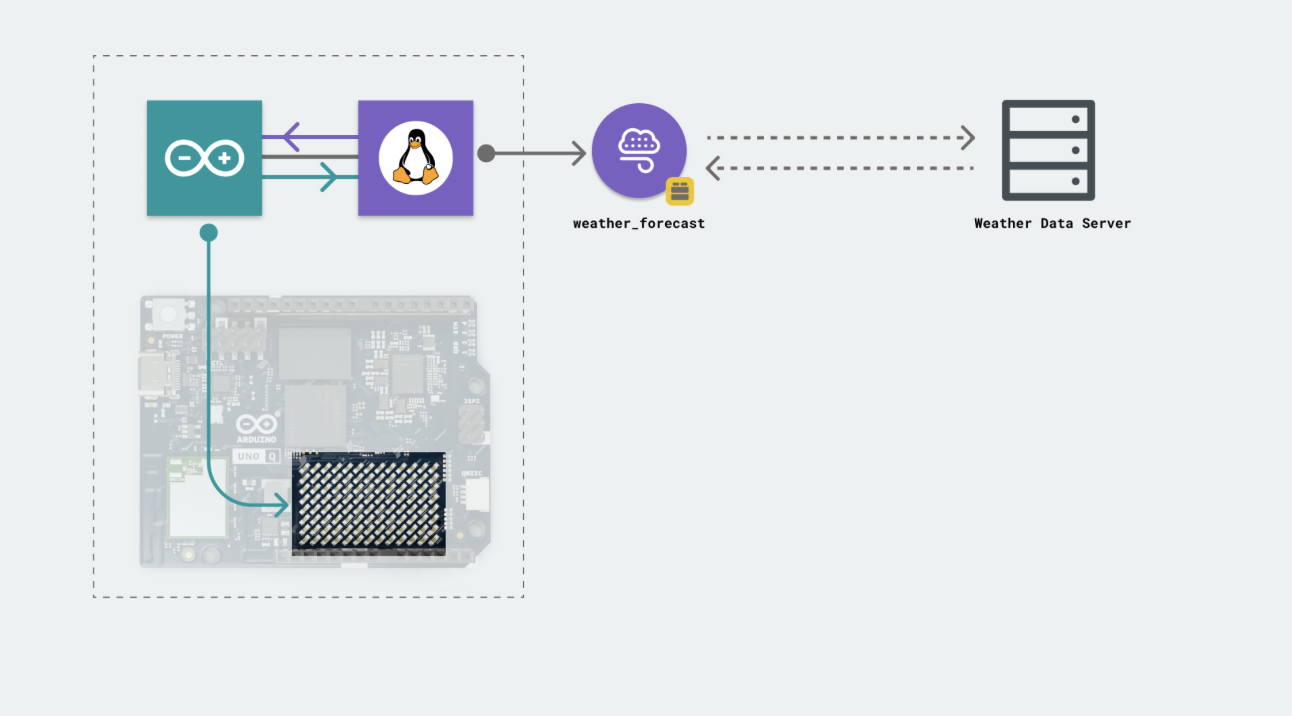
Bricks are imported into the main.py (Python) file that runs on the Linux system. When importing a Brick, we can access its functions, such as making requests to a weather API service, launching a web server, or classifying the video input of a camera.
For example, importing the weather_forecast Brick will make it possible to use:
get_forecast_by_city("London")
Where the API call to the weather forecast platform is already pre-made and ready to be used.
How to Import a Brick to an App
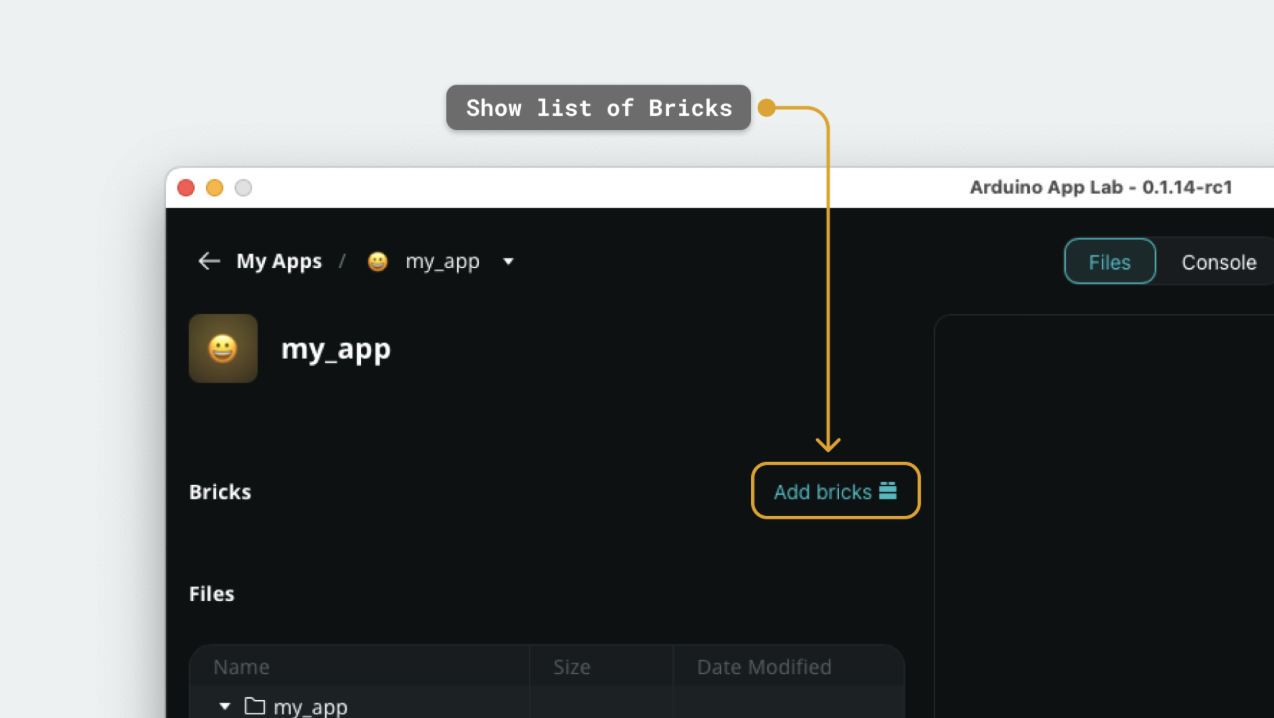
To import a Brick to an App, we can click on the "Add Brick" button inside an App.
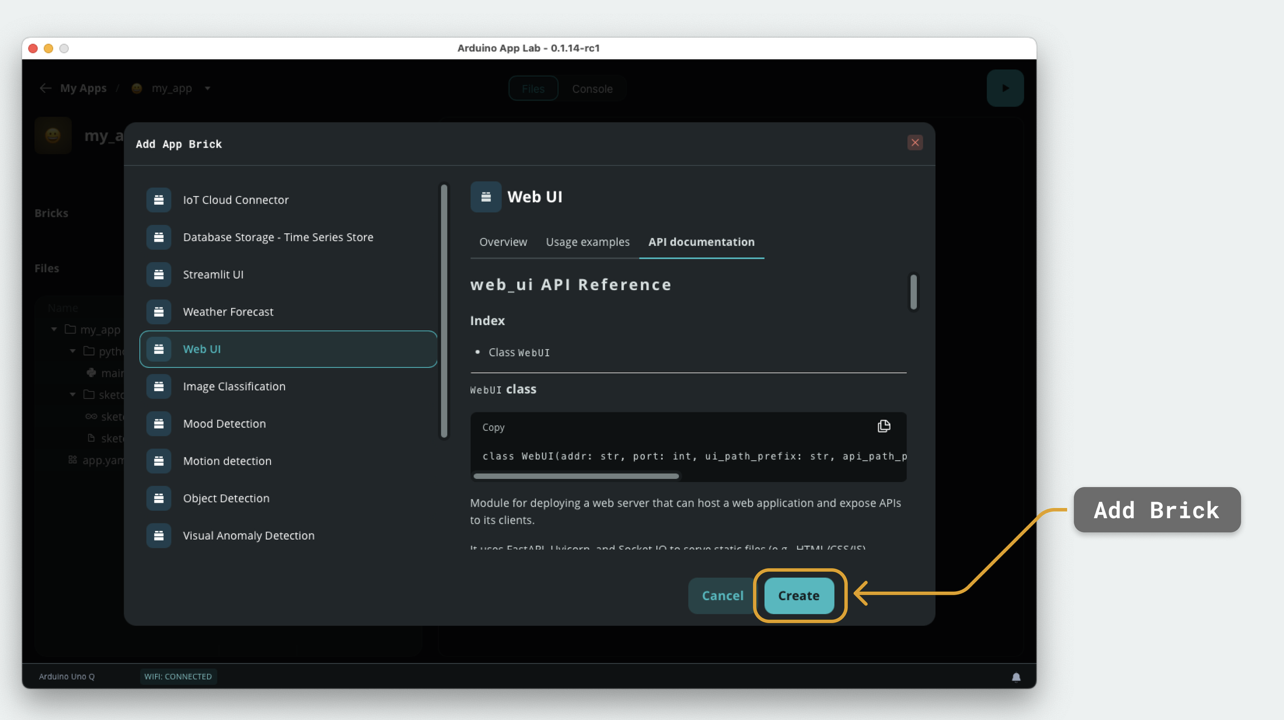
From the list, we can select a Brick, and add it to our App:
Your Turn
- Open an existing App (or create a new one) in Arduino App Lab.
- Click the Add Brick button inside the App.
- Browse the list and pick a Brick that interests you — for example, the weather_forecast Brick.
- Add the Brick to your App and open
main.py. - Call one of the Brick's functions — for example:
get_forecast_by_city("London")— and print the result. - Run the App and read the output in the terminal.
Try swapping the city name with your own city and see if the Brick returns accurate data.